Saturday, 1 October 2011

Comparison Of Different Wireless Interfaces


Preview:
Between most wireless networking technologies we use as of now, the one we directly operate the most is probably Wireless LAN or WiFi. 802.11 is a figure we all have seen. It is the set of instructions most modern Wi-Fi tech. is based upon, given by the team of engineers from IEEE in 1997. We’ve used Bluetooth, Infrared (cheap, portable mobile technology), and even I didn’t know I’ve made use of 802.11g as a fourteen year old child to run the net on laptop to game.


(My trusty old 802.11g data card)

What we see nowadays is mostly 802.11a, b, g and n. This post explores the differences between them. Now, theoretically, this is what happens:

· 802.11 , 2.4 Ghz frequency waves capable of only transmitting 2Mbps in short range.

· 802.11a, 5 Ghz regulated frequencies (expensive and undisturbed by other appliances),
upto 54 mbps in a short range. This became accepted in office networks.

· 802.11b 2.4 Ghz, 11 mbps unregulated frequencies. These are cheap to produce, more penetrative than 802.11a waves and thus have better interior range. Was mostly for domestic use.

· 802.11g 2.4 Ghz, 54 mbps, regulated, amalgamating best of both a and b, this has become the most common wireless due to affordability, decent indoor range. It is relatively safe in transmission.

Low frequency allows for greater range and makes it affordable.
“Backward compatibility” with 802.11 allowed for it to build on a the 802.11b user base, allowing new adapters to work on b signals.

· 802.11n 2.4/5Ghz tech aiming to use multiple transmitters and receptors (MIMO) for bandwidth speeds upto 300 mbps over maximum range.

(Note : this is not our own work, this is a preview/precap of a well-researched topic from listed sources)

Our experience:

Prateek and I paid multiple visits to the server room. We decided to measure the range, speed and frequency of the various connections there.

The sir there asked us to bring our own modem to test the same, and thus we got a Beetel 450T ADSL Wi-Fi modem. Apparently, a b and g Wi-Fi connection was available here. The router has its own limitations of range and speed (as we discovered on its Manual), it cannot test send over 24 MBPS thus disallowing us to check G and N networks. It could also only transmit b and g signals.

Another challenge that we faced was finding speed over range. And range over obstacles (walls, indoors).

Our current day laptops come with various Wireless adaptors whose settings can be seen and modified. Prateek’s Inspiron 15 R and my XPS 16 for example support b, g and n reception. This can be seen from
Control Panel -> Device Manager -> Network Adaptors -> Wifi Adaptors -> Advanced


In Ubuntu, we go to the Network Connections, Select Wireless. While adding a new connection with ad-hoc properties, we can specify the wireless standard we wish to use.


First , how to find frequency?

Coming from a gaming background, my first association with frequency was responsiveness, and thus PING. Ping or latency in getting a response from the server seemed to have a direct correlation with frequency of transmissions.

(Run -> cmd -> ping 192.168... {enter IP address}, check result)

Experiment: I speculated that smaller the ping, better the response, thus frequency must be 1/ping. Upon pinging the IP addresses of a few pc’s in the lab we found the delay to be about 0.08 ms.

Taking the inverse of 0.08ms, we only get a frequency of 1250 Kilohertz. This was nowhere close to being in Giga terms.

Testing the range of different Wi-Fi interfaces :

We used a 450TC1 router. If you have a basic mtnl/bsnl/airtel etc Wi-Fi enabled broadband connection, this is the default router supplied. We first type in your IP (internet protocol) address into the browser on a machine connected to your router via cable. This is the address your computer on the internet. This information is sent out through the cable to access/modify the settings of the router:


The user name and password settings are either the default settings of the device or those set by your service provider. I called up mtnl to inquire about mine.

Here is what the router settings menu looks like:


We went to Interface Setup à Wireless:


Important notes: Your Wi-Fi connection is secured by a simple encryption method called WEP or WPA; namely Wireless Equivalent Privacy and Wi-Fi Protected Access. They use relatively weak encryption algorithms over a security key (conventionally 40, 64 or 128 bit) to ensure outsiders cannot access your wireless. The latter uses TKIP encryption (Temporal Key Integrity Protocol) and is slightly better than WEP.


What we did for outdoor range:

I placed the router right outside the window (so that it remains unobstructed). Now I tried to set it to b, g and n exclusive modes respectively and physically carried my laptop around to check signal is detected up to what distance.


Upon activating b mode, (theoretical range is ~50m), I checked the signal received on my Laptop:

I walked outside and noted the longitude and latitude coordinates of the router and the range end point of the WiFi using a GPS device (Positioning Software on Nokia N97 mini). I used Google maps to evaluate the exact between the 2 points:


By Pythagoras Theorem, we get the range of the Wi-Fi as 39m which is close to the theoretical value, thus justifying our observation. It is also worth nothing that on the backside of the house (through 5-6 walls) the range was cut to just 20m approximately.


Then I tried this for g:


And again obtained the same range. This was theoretically backed; b and g have the same range.

Now, upon shifting to 802.11n, a slight hiccup was faced. 802.11n refuses to work on WEP and WPA2 security, possibly demanding better protection due to its large range and more susceptibility to misuse.
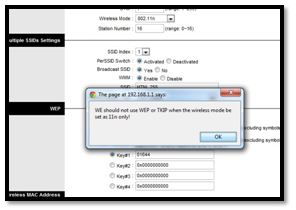


We could only activate 802.11n on RADIUS encryption,
RADIUS stands for “Remote Identification Dial In user service”.

It is supposed to be safer than WPA and WEP, but we did not know how to configure it. Nevertheless, we can detect signals (even if we cannot access the internet) in a range. I expected a range of about 65m (theoretical range is 70m), but the following signal died again just at the dairy itself.

It then struck me that I am actually standing at the horizon of the range of my tiny router, and not the limit of the signal range of 802.11n signals.

Now, most modern day routers come with support for b, g, and n networks, because they are backwards compatible. It was not possible to test the signals for a. It is also worth noting that while the transmitter is signal specific, a n-enabled wifi card will accept signals of all previous standards.

What we did for indoor range:

I used the software “Xirrus Wi-Fi Monitor 1.20”. It’s a freeware windows gadget available on the internet which collects information about Wi-Fi networks. It gives the interface of the Wi-Fi, its frequency, encryption and signal strength through Radar/Sonar like format.

To find the range I used the software’s locate feature. It Gives a sound beep with a variable frequency depending on the distance from the Wi-Fi router. So instead of searching the router with the locate feature, I used it for finding the range of different Wi-Fi interfaces.

(At 100% signal strength the beep frequency is the maximum, for 0% signal the beep dies.)

I placed the router 5m into the house, obstructed by about 4 walls and 3 doors, I walked outwards (away from the router) until the beep died out completely and signal strength appear 0% on the radar. During this process I also recorded the latitude and longitude coordinates of my router and the final point where the signal died out using my NOKIA C5-00 mobile’s GPS.

The video below illustrates the process for b and g type Wi-Fi interface:


Latitude, longitude coordinates of Wi-Fi router: 28°41’32’’ N, 77°9’54” E

Latitude, longitude coordinates of range end point for both b and g: 28°41’32’’ N, 77°9’55” E

Using Google maps, I found the distance between the two locations which came out to be 25m.

Comparing the observed data (~25m) to that stated on the internet (~30m) came to be very close thus verifying our observation.


(Source: http://en.wikipedia.org/wiki/Comparison_of_wireless_data_standards)

Now for speed:

This was frustrating. It took us three visits to the server room to get this done. After failing to find software to do this, we decided to use our trusty www.speedtest.net. However this posed its own problems, as Flash plugins over IIITD servers are forbidden. Once we returned because sir wasn’t there. The next time he allowed us to use his Cyberoam with special privileges, but on the very day the servers had very poor speed (0.05 Megabits per second!), thus not allowing us to conduct our test.

It was not possible to compare the speeds of these wireless standards as even the best commercially available internet connections in India do not exceed 7.2 mbps, much below the capacity of these wireless standards.

Testing different Wi-Fi interfaces for frequency:

However, after further research, we found that

Frequency: is the arbitrary band of frequency range to which a transmitted signal belongs to and is received. Thus testing if a connection is 2.4Ghz is futile, as unlike bandwidth speed, the frequency written on the box or adapter IS the actual frequency data signals are transmitted over. These are caught by a receptor designed to receive only this given frequency. At most variation occurs to a very slight extent in channels around 2.4 Ghz itself, such as Low, Centre, Upper Values where it may vary from 2.401 to 2.412 to 2.423 Ghz, (typical standardized Channel 1 by the IEEE itself).

Using Xirrus Wi-Fi Monitor 1.20 Gadget and switching router settings between b and g as done above, I recorded the frequency of the 2 interfaces:

For b interface:


For g interface:

Conclusion:

We discussed the theoretical definition and creation of the Wi-Fi technology. We talked about how we could relate it to our personal experiences and then finally explored a few aspects vis range, frequency and speed of different Wi-Fi interfaces(a, b, g and n) and were satisfactorily able to compare our observations to theoretical results.


Contributed by:

Aditya Gupta and Prateek Mehra

Sources:

Yahoo answers : http://answers.yahoo.com/question/index?qid=20080417141825AAity4Q

About.com http://compnetworking.about.com/cs/wireless80211/a/aa80211standard.htm

http://www.webopedia.com/TERM/8/802_11.html

Wiki : http://en.wikipedia.org/wiki/IEEE_802.11

http://www.everymac.com/systems/apple/apple-tv/apple-tv-faq/what-is-802.11n-differences-between-802.11n-802.11a-802.11b-802.11g.html

http://www.northoak-training.com/Wireless.htm

http://www.moonblinkWi-Fi.com/2point4freq.cfm


Data Repositories


Data Repository


In school, we undertook many group projects, and we all faced one common problem. Synchronizing different Version updates.
Every member updated the project (programs) at their own homes, and it was difficult to compare and combine the changes.This is an issue with basically every project undertaken as a group effort

To our relief....
Along came Data Repositories!!!!


Data Repositories are basically Version Control Systems located at a centralized server so that different users can utilize the same 'updated' files, programs etc. The logical question that comes to mind is "What is a Version Controlled System?"


Version Controlled System

By version control, we mean updating of versions of the same code when changed by different users,This allows a uniform updated code to be available to all the users.It involves logically or physically portioning data, so as to deal with the problem of ever increasing information in such databases. They are used by financial organizations, the government, university libraries, google spreadsheets, even the National Stock exchange...you name it.

Advantages
  • Easy accessibility to multiple, remote users.
  • User friendly because the physical factor is absent, plus various GUI based utilities have been developed
  • Digitalisation of libraries, satellite images, etc. adds value to these objects,Making them easier to preserve and update in the indefinite future
  • Most Importantly-"Control of data redundancy!" :)

SVN v/s Git

SVN and Git are both different types of data repositories.

SVN-
  • stores data on a central server.
  • users directly make change to the file on server.
  • has one centralized repository, hence if various users are updating simultaneously, data can be lost.
  • provides an easy walk through different versions by using sequential revision numbers.


GIT-
  • While using git, the user downloads the file from the server and then uses it.It is entirely his wish as to whether he wants to upload it onto the server. If uploaded, however, the file on the server gets replaced by the newer version and is then available for other users
  • Git repositories are smaller, faster and carry their entire history.Having no sequential revision numbers is useful when several users push data in the same git repository.
  • With the lack of sequential commits, data is neither lost, nor immediately merged with other changes
  • It uses the concept of branching by default. Hence, multiple backup copies exist (in some versions).
  • the data file format is also compressed in Git.


Creating the server

Using Visual SVN Server-
Visual svn server can be downloaded and installed from http://www.visualsvn.com/server/download/


We then create a repository using visual svn


In order for the server to work,some files in the repository directory >config folder are required to be updated


The "svnserve" file is updated, by adding the following lines through note pad

[general]
anon-access = read
auth-access = write
password-db = passwd
authz-db = authz


various users are granted access by updating the "passwd" file(same folder as above)
[users]
*username= *password


for testing our server, we start a daemon in command prompt
svnserve --daemon --root "Directory path of the repository"


The server had been created and was functioning properly.


Using Google Code
To create a server using google code, go to http://code.google.com/hosting/
click on create a new project, the following page will open

to know your checkout directory go to source.
The following web page in addition to showing the directory will also give the username and a link to the password generator


TortoiseSVN


TortoiseSVN is a client side GUI utility program to access SVN servers. It can be downloaded and installed from:http://tortoisesvn.net/downloads.html

SVN Checkout-SVN repository is created and synced with the already existing repository on the server; this is called an SVN Checkout
This is done by right clicking on a suitable directory and selecting SVN Checkout
The following dialog box appears


the following is an SVN checkout for a server set up using Google code


the checkout downloads-
Congratulations!your Data Repository is upto date

Using SVN
On using right click in the SVN folder, we choose TortoiseSVN to explore features in SVN.
TortioseSVN does not require a cmd.


Features in SVN

Commit -changing a file on the server, adding new ones, deleting etc. done by a right clicking on the file and choosing SVNcommmit

Update -extracting a new version of the file from the repository. Done by right clicking on the file and choosing SVNupdate

Diff - comparison utility that outputs the difference between two files.

Merge -commiting the changes made in branches to the trunk

Branch -used to try new features without disturbing the main development with errors


Experience-
A hell lot of work was required. Constant error corrections were needed to get the server finally working! :) (Thank god it finally ran!)
Learned a nice way to share things.
I would like to thank professor Amarjeet to have given us the opportunity to work on this topic.
also, to Romil Bharadwaj for support

ps- (if movies ,exes, mp3s etc are on a repository....they can be downloaded from it even with firewalls in place! ;) )

By-
Charupriya Sharma
Shikhar Singhal


Common Utilities in Windows

And Linux


What makes a good Utility ?

A good utility is one that does its job as well as possible. It has to play well with others; it has to be amenable to being combined with other utilities. A program that doesn't combine with others isn't a utility; it's an application.

Utilities are supposed to let you build one-off applications cheaply and easily from the materials at hand. A lot of people think of them as being like tools in a toolbox. The goal is not to have a single widget that does everything, but to have a handful of tools, each of which does one thing as well as possible.

Some utilities are reasonably useful on their own, whereas others imply cooperation in pipelines of utilities.

So let us put some light on the utilities of various Operating Systems like Linux and Windows.


Common Utilities in Linux !


Linux System Monitoring Tools !

top - Process Activity Command

The top program provides a dynamic real-time view of a running system i.e. actual process activity. By default, it displays the most CPU-intensive tasks running on the server and updates the list every five seconds.

Commonly Used Hot Keys

The top command provides several useful hot keys:

Hot Keys Usage

t Displays summary information off and on.

m Displays memory information off and on.

A Sorts the display by top consumers of various system resources. Useful

for quick identification of performance - hungry task on a system.

o Enables you to interactively select the ordering within top.

r Issues kill command.

z Turns off or on color/mono.


>> top.

vmstat - System Activity, Hardware and System Information.

>> vmstat.

The command vmstat reports information about processes, memory, paging, block IO, traps, and cpu activity.


>> vmstat –a.

Get Information About Active / Inactive Memory Pages.


>> vmstat –m.

Display Memory Utilization.


>> ps –axZ.

Prints Security Information.


>> Uptime.

The uptime command can be used to see how long the server has been running. The current time, how long the system has been running, how many users are currently logged on, and the system load averages for the past 1, 5, and 15 minutes.


1 can be considered as optimal load value. The load can change from system to system. For a single CPU system 1 - 3 and SMP systems 6-10 load value might be acceptable.

Simplify data extraction using Linux text utilities !


Before you start, you should first understand what regular expressions are and how to use them.

In their simplest form, regular expressions are the search criteria used for locating text in a file. For example, to find all lines containing the word "admin", you can search for "admin". Thus, "admin" constitutes a regular expression. If you want not only to find "admin" but also to replace it with "root", you can give the appropriate commands in a utility to substitute "root" for "admin". Both thus constitute regular expressions.

These basic rules govern regular expressions:


Any single character or series of characters can be used to match itself or themselves, as in the "admin" example above.


The caret sign (^) signifies the beginning of a line; the dollar sign ($) signifies the end.


To literally search for special characters such as the dollar sign, precede them with a backslash (\). For example, \$searches for $ and not the end of a line.


The period (.) represents any single character. For example, ad..n stands for five-character entries, the first two being "ad" and the last being "n". The middle two characters can be anything, but there can be only two of them.


Any time the regular expression is contained within slashes (for example, /re/), the search is forward through the file. When it is enclosed in question marks (for example, ?re?), the search is backward through the file.


Square brackets ([]) signify multiple values, and a minus sign (-) indicates a range of values. For example, [0-9] is the same as [0123456789], and [a-z] is the equivalent of a search for any lowercase letter. If the first character of a list is a caret, it matches any character not in the list.


Table 1 illustrates how these matches work in practice.


Example Description


[abc] Matches one of "a", "b" or "c"


[a-z] Matches any one lowercase letter from "a" to "z"


[0-9] Matches any one no from 0 to 9


[^0-9] Matches any character other than the no from 0-9


[a-zA-Z0-9] Matches any alphabetic or numeric character


With this information under your belt, let's look at the utilities.


>> fgrep.


fgrep searches files for a string and prints all lines that contain that string. Unlike grep, fgrep searches for a string instead of searching for a pattern that matches an expression. The fgrep utility can be thought of as grep with a few enhancements:


>> egrep.


egrep is a more powerful version of grep that allows you to search for more than one object at a time. Objects being searched for are separated by carriage returns (as with fgrep) or by the pipe symbol (|).


Besides the capacity to search for multiple objects, egrep offers the ability to search for repetitions and groups:

  • ? looks for zero repetitions or one repetition of the character that precedes the question mark.
  • + looks for one or more repetitions of the character that precedes the plus sign.
  • ( ) signifies a group.

>> cut.


With the cut utility, you can separate columns that could constitute data fields in a file. The default delimiter is the tab, and the -foption is used to specify the desired field.


>> paste.


The paste utility combines fields from files. It takes one line from one source and combines it with another line from another source.


For example, imagine that the content of a file named "file1.txt" is:

Microsoft
Research
Services

In addition, you have "file2.txt" with this content


India
China
United State

The following command combines the contents of these files, as shown below:


Sysstat Utility !

The Sysstat package contains utilities to monitor system performance and usage activity. Sysstat contains various utilities , common to many commercial Unixes and tools you can schedule via cron to collect and historize performances and activity data.

>> iosat.

It reports CPU stastics and input/output statistics for devices, partitions & network file systems.

>> mpstat.

It reports individual or combined processor related statistics.


>> sar.

It collects, reports & saves system activity information, CPU, memory, disk, interrupts, network interfaces, TTV, Kernel, tables, etc.

>> sadc.

It is the system activity data collector, used as backend for sar.

Time Tracker Tool !

  • Ktimetracker.

Ktimetracker tracks time spent on various tasks. It is useful for tracking billable hours and can report the hours logged by tasks and day.


Editor Tools !

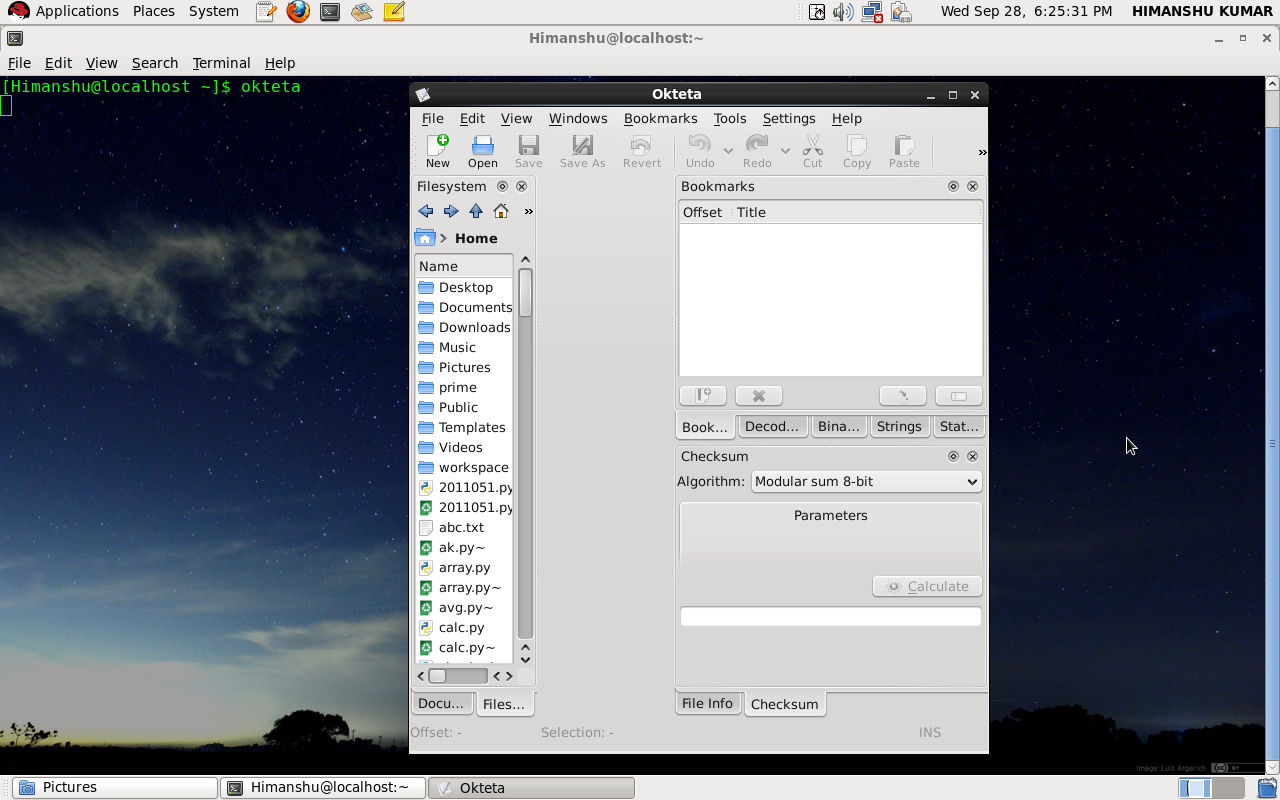
Various editing tools are available in linux like gedit, emacs, kwrite, okteta.

  • Okteta

To start okteta, type okteta at a terminal or select Hex Editor from Applications à Utilities à Okteta.

Okteta is a simple editor for the raw data of files. The data is displayed in the traditional view with two columns: one with nemuric values & one with assigned characters. Editing can be done both in values column & the character column. Besides the usual editing compatibilities, okteta also brings a small set of tools, like a table listing decoding into common simple data types.


Backup Tool !

  • Kbackup.

Kbackup is a simple backup utility that backs up locally to any media (hard drive or mounted device) that can be written to. It’s designed to be a backup device that ANY user can take advantage of. To that end, it is simple and doesn’t have a long feature list. Outside of being able to back up files and directories, the only other feature is that the user can save backup profiles that can be opened and backed up quickly. Kbackup uses the tar format to restore backups, which is as simple as using ARK as a GUI for unpacking the backup files.

Firewall Tool !

An application Firewall is a form of firewall which controls input, output, and/or access from, to, or by an application or service. It operates by monitoring and potentially blocking the input, output, or system service calls which do not meet the configured policy of the firewall. The application firewall is typically built to control all network traffic on any OSI layer up to the application layer. It is able to control applications or services specifically, unlike a stateful network firewall which is - without additional software - unable to control network traffic regarding a specific application.


Common Utilities in Windows !


Backup utility !

This utility helps us to create backup/copies of any data stored in the computer.

We can backup the folders, libraries, and drives. By default, the backups are created on a regular schedule. We can back up our files to a local hard disk, a removable disk, a DVD, or another computer on the network. (We may need to provide credentials to access a network location.)


System restore !

System Restore helps us to restore our computer's system files to an earlier point in time. It's a way to undo the system changes to our computer without affecting our personal files. System Restore uses a feature called system protection to regularly create and save restore points on our computer. These restore points contain information about registry settings and other system information that Windows uses. We can also create restore points manually.


Problem steps recorder !

It’s a quite useful utility in windows. Sometimes, we (users) have certain problems in describing a problem accurately. That’s when PSR comes in handy.

It’s a type of screen capture software that records all the actions like keystrokes, mouse clicks etc and saves the sequence of events in a MHTML page that documents every step the user took, along with screenshots. We can run PSR by writing psr.exe in the Start menu Search box or at the command prompt.


System repair disc !

This utility helps in system recovery when a serious error occurs in windows. To create a system recovery disc:

Just click Start and type System Repair in the Search box. Click on Create A System Repair Disc


To use system repair disc

Insert the system repair disc into your CD or DVD drive.

Restart the computer from the disc. (We may have to set CD/DVD as the primary boot device in BIOS.) Then we will get a list of recovery options:

Startup repair

System Restore

System Image Recovery

Windows memory diagnostic

Command prompt

Display projection !

This utility helps us to display our Windows 7 portable computer’s desktop on a projector. To run this, just press Windows logo key + P and we’ll see a pop-up box.


The first setting is the default and displays on the computer screen only.

The second setting duplicates the display on the computer screen to the projector. The third setting extends the desktop across both the computer screen and the projector, and the fourth setting displays via the projector only and turns off the computer screen.

Windows Mobility Center !

Mobility Center displays the most commonly used laptop settings, such as brightness, volume, battery status, and wireless network status. Different tiles are displayed depending on system, and some tiles are added by the laptop manufacturer.


This disables the screensaver, sets the wallpaper to a neutral one and even puts the IM client on “do not disturb” status.

Windows Powershell !

Windows powershell is a command line shell interface and scripting tool that makes users easier to perform tasks using cmdlets, which are commands that perform single task and scripts, that perform complex tasks.


Posted By : Himanshu Kumar & Amit Khiwal.